Picking a theme
Your site’s colours — header, text, buttons and accents — live in one place, and changes apply everywhere the moment you save. There are two ways to set them: pick a ready-made preset, or fine-tune every colour by hand.
Apply a preset from the library
Admin → Theme
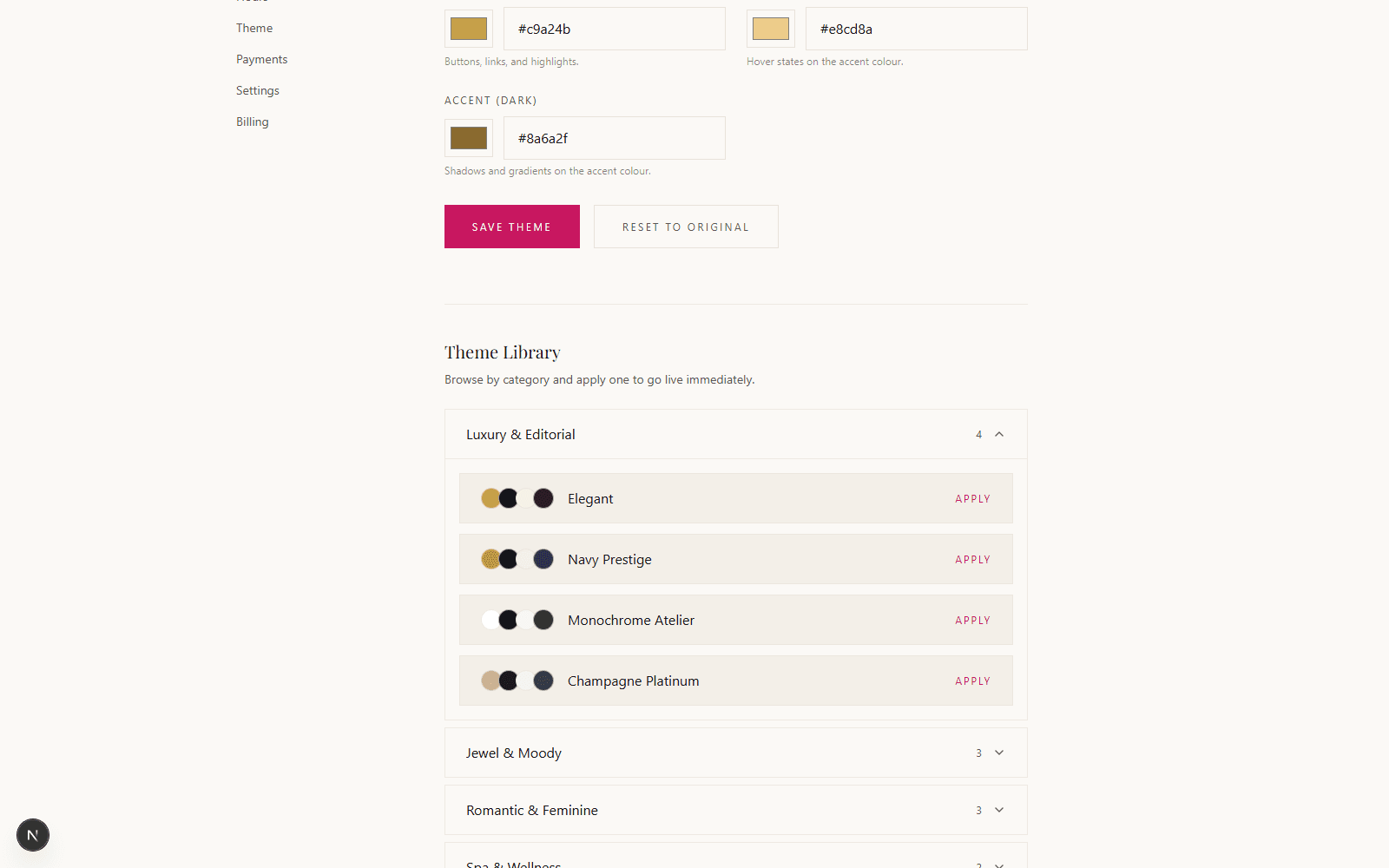
Scroll down to the Theme Library and browse by category — Luxury & Editorial, Jewel & Moody, Spa & Wellness, Retro & Vintage, Pastel & Playful, and more. Every preset shows its three main colours at a glance. Click a category to expand it, then hit Apply on anything you like — it goes live on your site immediately, no separate save step needed.
Or fine-tune every colour yourself
Admin → Theme
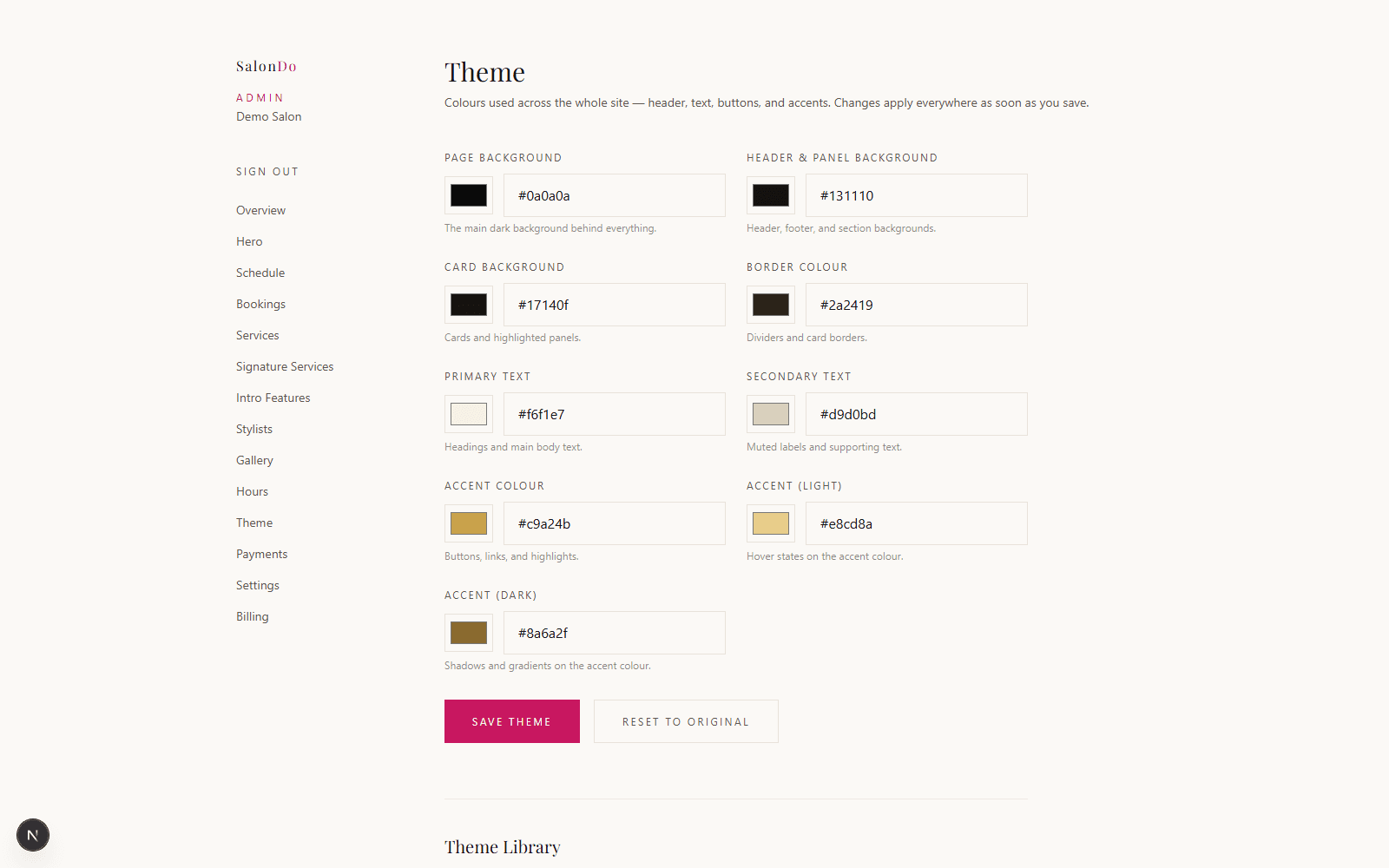
Prefer to match your existing branding exactly? The colour fields at the top of the page control everything: page background, header & panel background, card background, borders, primary and secondary text, and your accent colour (used for buttons, links and highlights) with its light and dark variants for hover states and shadows. Paste in hex codes directly, or use the swatches. When you’re happy, click Save Theme.
Changed your mind?
Reset to Original puts the colours back to where they started. Applying a different preset from the library at any time simply overwrites the current colours — nothing is locked in, so it’s worth trying a few before settling.